1) Updates
2) Preamble
3) Kindle Touch
4) X-Ray
5) PDF documents
6) Kindle Lighted Cover
7) Kindle Fire
8) How to buy a Kindle in Singapore
9) How to buy Kindle ebooks in Singapore
10) Which Kindle to buy?
---------------------
Preamble
Who reads nowadays any more? Most people are playing Angry Birds on their tablets! Actually, that's not true, people are playing AB and also using their tablets for many other applications. With tablets such as the iPads and other Android devices swamping the market, shouldn't we just use our tablets to read books and not have to carry another device?
Fortunately for Kindle lovers, the answer to this is still no; it still makes a lot of sense to continue with the Kindle for reading. For all intents and purposes, it's 'insanely great'. E Ink, the main feature that differences LCD tablets with Kindles and other similar e-readers, needs to be seen to be believed. It looks like real book; no glare, no back-light.
The Kindle is not available directly from Amazon for people in Singapore, so we need to work around the limitations to make sure Amazon and authors get our money. Of historical interest is the Kindle 3 guide I started more than a year ago. There are more than 700 comments that provide a lot of interesting information that will be of use to everyone. Yes, all 3 of you who have told me you read the whole thing! I'll repeat the essential things to note in this blog entry.
New additions to the Kindle Family

The new Kindle 4 is now just called the Kindle it's very inexpensive. The older Kindle 3 is now called the Kindle Keyboard. And the third new addition is the Kindle Touch which features a touch screen.
Kindle Touch
The Kindle Touch and cover took two weeks to arrive after it got shipped from Amazon. The package was shipped free of charge to Comgateway and forwarded to Singapore. The shipping was US$30. So with shipping included, the cost for a Touch alone is around S$150, with the cover, it's around S$240.


The Kindle Touch is quite different from the previous offerings from Amazon. They decided to go all the way and removed all hard buttons from the Kindle Touch, except the Home button. So how does it compare to the previous Kindle 3 (Kindle Keyboard)?
There are currently many 1-star reviews for the Kindle Touch on Amazon. I enjoy reading these reviews because often times the reviewers really don't have a clue, and of course get called out by the brash counter-commenters. However, there are some criticisms that are valid and I'll get them out of the way first.
The first is the steeper learning curve. The Quick Start guide included in the package is just way too sparse and people can get totally lost in the beginning. What to press on the Home screen? How to go to the last, or next page? I was a bit lost too so I can understand the 1-star folks. Once you read the PDF manual on your computer, it'll be OK. The pictures below show what to do when you're in a book. They forgot a picture to show what to do at the Home screen, which is to flick left or right to proceed forwards or backwards.


The other bad thing is the lack of landscape presentation. I expect this to be added in a future software update. That's about all the bad aspects of the Touch! Let's go on to the good parts.
The reason for a Touch screen is to make text selection easier, and in this aspect, the Touch truly shines. Selecting words quickly to find their definitions, highlight, or add notes are now much quicker without the need to use the old joystick. Another good thing about Touch is page turns. There are now 2 ways to do page turns: what's shown in the first 2 screenshots above, and to flick left or right. What this means is that you don't need to hold the Kindle a certain way to press the last/next page buttons on non-Touch Kindles. Just hold the Touch in any position you find comfortable.
X-Ray
X-Ray is a new feature found on the Touch; I find it to be totally breathtaking. This is a software feature so it remains to be seen whether Amazon will incorporate this on other Kindles; probably not. X-Ray presents a book into various 'components', with a timeline and important characters superimposed onto it. Here's an example from Steve Jobs. One interesting character from the book is Jon Rubinstein, one of the fathers of the iPod and webOS which is used by my favourite mobile phone, the discontinued Palm Pre series. Say I want to know Jon's story; I can go into X-Ray and get the gist very quickly. It's very intuitive and quite a game changer for readers. (click = big)


You'd notice that Jon's wikipedia entry is included in X-Ray. I read somewhere that the wiki information is embedded inside the ebook itself. Not all ebooks have this; probably only the newer ones. I think all books should have X-Ray!
PDF documents
Currently there is a 'problem' with PDF documents as the ability to read in landscape mode is not implemented yet. I am pleasantly surprised, though, that reading PDF is now a different experience because of the ability to pinch-zoom, and drag the page around. While 6" screens are generally not suited for PDF documents (I consider an iPad-size tablet ideal for PDFs), what we find on the Touch seems to be quite workable and marginally satisfactory, certainly better than what the Kindle 3/Keyboard offers.
Kindle Touch Lighted Leather Cover
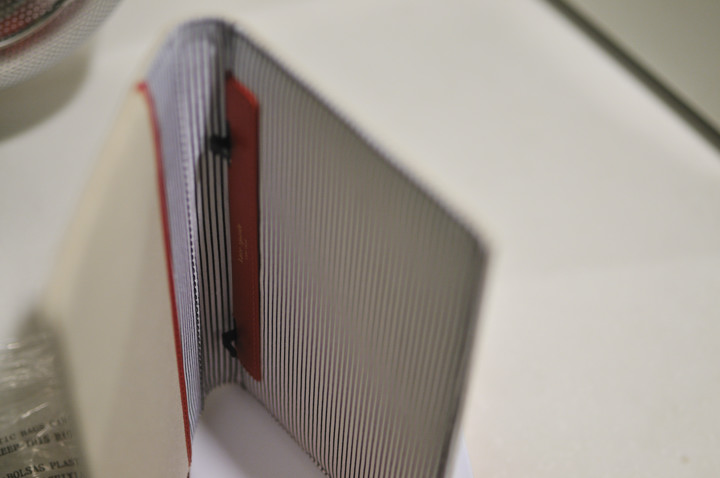
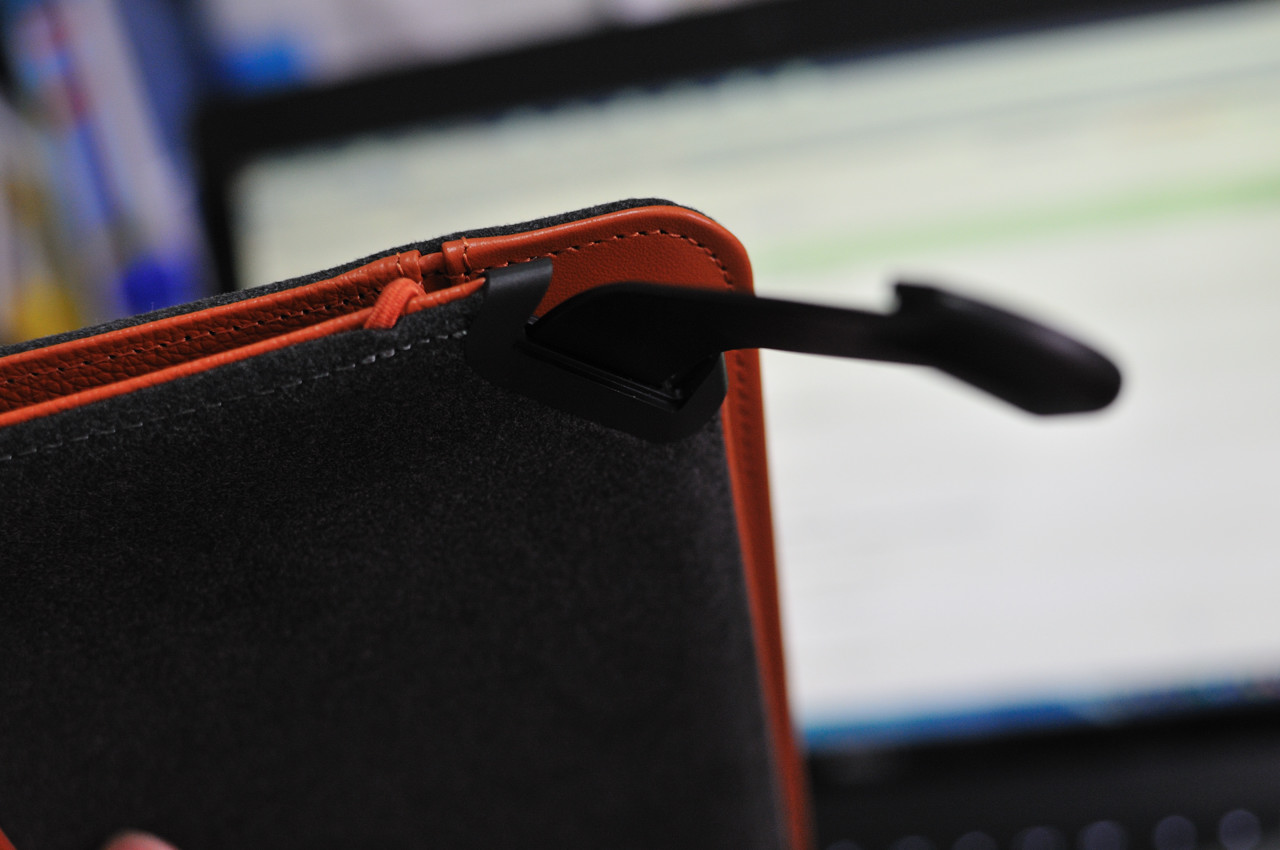
This lighted cover isn't really leather, I think. It's some sort of plastic that looks like leather. Generally speaking, I like it a lot; it is much better than the older lighted cover for the Kindle 3. The light now sits in the middle of the unit and so it's able to illuminate the device more evenly. The Kindle Touch is now wrapped by a rubbery case and it feels very solid. It's not cheap, but it's highly recommended!


Kindle Fire
How about the Kindle Fire? The Fire is an Android-based tablet. While it's not difficult to get the device itself and Kindle books onto it, I am concerned whether books are all we can get. Also, the advantage that the Fire has is that it's better at the Kindle at handling PDF files. However, given the Fire's relatively small screen size, how feasible is this? There are also rumors that new Fires with bigger screens will be announced soon. Currently, I will wait and see before getting a Fire.
How to buy a Kindle in Singapore
Here are the steps I use. Do note that Amazon doesn't officially support Kindles in Singapore. There are instances where buyers were found to be not from 'authorised countries' and their accounts were disabled. Your mileage may vary. Caveat Emptor. Other than that, things have worked really well for many local Kindle users.
Some preparatory steps to take before buying books from the Amazon US store
How to buy e-books from the Amazon US store
Which Kindle to buy?
For now, the non-3G Kindle Touch with Special Offers
is my recommendation. The Kindle Keyboard does have its benefits,
specifically real buttons for page advancement. However, the Touch provides many additional features that provide the biggest jump in usability since the introduction of the first Kindle:
Read More of This Content...
- 19 Jan 2012, Software Update Version 5.0.3 is out. This is a very good update. The overall response of the user interface is very much quicker.
- 5 Dec 2011, I've received the Touch and the lighted cover. Works great! If you want to get a new Kindle, this is it.
2) Preamble
3) Kindle Touch
4) X-Ray
5) PDF documents
6) Kindle Lighted Cover
7) Kindle Fire
8) How to buy a Kindle in Singapore
9) How to buy Kindle ebooks in Singapore
10) Which Kindle to buy?
---------------------
Preamble
Who reads nowadays any more? Most people are playing Angry Birds on their tablets! Actually, that's not true, people are playing AB and also using their tablets for many other applications. With tablets such as the iPads and other Android devices swamping the market, shouldn't we just use our tablets to read books and not have to carry another device?
Fortunately for Kindle lovers, the answer to this is still no; it still makes a lot of sense to continue with the Kindle for reading. For all intents and purposes, it's 'insanely great'. E Ink, the main feature that differences LCD tablets with Kindles and other similar e-readers, needs to be seen to be believed. It looks like real book; no glare, no back-light.
The Kindle is not available directly from Amazon for people in Singapore, so we need to work around the limitations to make sure Amazon and authors get our money. Of historical interest is the Kindle 3 guide I started more than a year ago. There are more than 700 comments that provide a lot of interesting information that will be of use to everyone. Yes, all 3 of you who have told me you read the whole thing! I'll repeat the essential things to note in this blog entry.
New additions to the Kindle Family
The new Kindle 4 is now just called the Kindle it's very inexpensive. The older Kindle 3 is now called the Kindle Keyboard. And the third new addition is the Kindle Touch which features a touch screen.
Kindle Touch
The Kindle Touch and cover took two weeks to arrive after it got shipped from Amazon. The package was shipped free of charge to Comgateway and forwarded to Singapore. The shipping was US$30. So with shipping included, the cost for a Touch alone is around S$150, with the cover, it's around S$240.


The Kindle Touch is quite different from the previous offerings from Amazon. They decided to go all the way and removed all hard buttons from the Kindle Touch, except the Home button. So how does it compare to the previous Kindle 3 (Kindle Keyboard)?
There are currently many 1-star reviews for the Kindle Touch on Amazon. I enjoy reading these reviews because often times the reviewers really don't have a clue, and of course get called out by the brash counter-commenters. However, there are some criticisms that are valid and I'll get them out of the way first.
The first is the steeper learning curve. The Quick Start guide included in the package is just way too sparse and people can get totally lost in the beginning. What to press on the Home screen? How to go to the last, or next page? I was a bit lost too so I can understand the 1-star folks. Once you read the PDF manual on your computer, it'll be OK. The pictures below show what to do when you're in a book. They forgot a picture to show what to do at the Home screen, which is to flick left or right to proceed forwards or backwards.


The other bad thing is the lack of landscape presentation. I expect this to be added in a future software update. That's about all the bad aspects of the Touch! Let's go on to the good parts.
The reason for a Touch screen is to make text selection easier, and in this aspect, the Touch truly shines. Selecting words quickly to find their definitions, highlight, or add notes are now much quicker without the need to use the old joystick. Another good thing about Touch is page turns. There are now 2 ways to do page turns: what's shown in the first 2 screenshots above, and to flick left or right. What this means is that you don't need to hold the Kindle a certain way to press the last/next page buttons on non-Touch Kindles. Just hold the Touch in any position you find comfortable.
X-Ray
X-Ray is a new feature found on the Touch; I find it to be totally breathtaking. This is a software feature so it remains to be seen whether Amazon will incorporate this on other Kindles; probably not. X-Ray presents a book into various 'components', with a timeline and important characters superimposed onto it. Here's an example from Steve Jobs. One interesting character from the book is Jon Rubinstein, one of the fathers of the iPod and webOS which is used by my favourite mobile phone, the discontinued Palm Pre series. Say I want to know Jon's story; I can go into X-Ray and get the gist very quickly. It's very intuitive and quite a game changer for readers. (click = big)


You'd notice that Jon's wikipedia entry is included in X-Ray. I read somewhere that the wiki information is embedded inside the ebook itself. Not all ebooks have this; probably only the newer ones. I think all books should have X-Ray!
PDF documents
Currently there is a 'problem' with PDF documents as the ability to read in landscape mode is not implemented yet. I am pleasantly surprised, though, that reading PDF is now a different experience because of the ability to pinch-zoom, and drag the page around. While 6" screens are generally not suited for PDF documents (I consider an iPad-size tablet ideal for PDFs), what we find on the Touch seems to be quite workable and marginally satisfactory, certainly better than what the Kindle 3/Keyboard offers.
Kindle Touch Lighted Leather Cover
This lighted cover isn't really leather, I think. It's some sort of plastic that looks like leather. Generally speaking, I like it a lot; it is much better than the older lighted cover for the Kindle 3. The light now sits in the middle of the unit and so it's able to illuminate the device more evenly. The Kindle Touch is now wrapped by a rubbery case and it feels very solid. It's not cheap, but it's highly recommended!


Kindle Fire
How about the Kindle Fire? The Fire is an Android-based tablet. While it's not difficult to get the device itself and Kindle books onto it, I am concerned whether books are all we can get. Also, the advantage that the Fire has is that it's better at the Kindle at handling PDF files. However, given the Fire's relatively small screen size, how feasible is this? There are also rumors that new Fires with bigger screens will be announced soon. Currently, I will wait and see before getting a Fire.
How to buy a Kindle in Singapore
Here are the steps I use. Do note that Amazon doesn't officially support Kindles in Singapore. There are instances where buyers were found to be not from 'authorised countries' and their accounts were disabled. Your mileage may vary. Caveat Emptor. Other than that, things have worked really well for many local Kindle users.
- Create an Amazon account if you don't already have one.
- Go to the Kindle page and buy yourself a Kindle. It will be automatically linked to your Amazon account. I prefer the WiFi-only version rather than the 3G+WiFi version. The added 3G isn't really necessary because worldwide surfing isn't guaranteed. Also, additional costs will be incurred for the transfer of documents if 3G (AT&T roaming) is used when there is no WiFi.
- Ship it to a third party mail forwarder. Borderlinx (Citibank credit card required, go to 'get a virtual address') and Comgateway (go to 'get my US address') are excellent. They both use DHL.
- When you get your Kindle, you need to register it if it hasn't already been registered. After connecting to wifi at home>settings, register it by filling in your Amazon username and password at "home>settings>register".
Some preparatory steps to take before buying books from the Amazon US store
- Firstly, do NOT buy books using your Kindle's Whispernet/3G/WiFi. Don't buy from Kindle apps too.
- Buy a gift card
with your local credit card, say USD50. Email the gift card to your
email address. When you receive it in the mail, apply the gift amount to
your Amazon account. - Go to your account, 'manage payment options', and erase your credit
card info if you have any credit cards associated with Amazon.com . (Do
this also whenever you buy something at Amazon using your local credit
card.) - You need to buy books using your Internet browser on your computer with a VPN installed. Functionally, using a VPN is the equivalent of me giving you an airplane ticket to travel with your Kindle to the US. Use a VPN such as AlwaysVPN to make yourself situated in the US, in spirit. You may turn it off later when you're done purchasing. I can share my AlwaysVPN account with local Kindle users. Do not use Hotspot Shield; it's known not to work sometimes.
- Exit your Internet browser.
- Switch on your VPN. Open your browser.
- Go to Manage your Kindle at the Kindle product page.
- Go to 'your country'. Change your country to US if it's showing another country. Use any US address.
- Switch off the VPN.
How to buy e-books from the Amazon US store
- Again, do NOT buy e-books (even if the books are free) using the Kindle's Whispernet/3G/WiFi.
- Ensure that you have sufficient funds in your account. If not, buy more gift cards and apply them to your account.
- Exit your Internet browser.
- Switch on your VPN, open your Internet browser and go Amazon
. Find your book and click 'buy now with 1-click', 'deliver to your Kindle'. If you choose
to wirelessly send it to your Kindle, you should receive the book in
less than a minute. You can also choose to download the file and
transfer it to your Kindle using USB. If asked for the billing address, use any US address. Note that this address will not be used because funds will originate from your gift card balance. - Switch off the VPN.
Which Kindle to buy?
For now, the non-3G Kindle Touch with Special Offers
is my recommendation. The Kindle Keyboard does have its benefits,
specifically real buttons for page advancement. However, the Touch provides many additional features that provide the biggest jump in usability since the introduction of the first Kindle:
- The ability to touch the screen means that you can hold the device any way you like and not being restricted by the positioning of the page advancement buttons
- X-Ray; follow the story's characters like never before
- instant dictionary look-ups
 case.




 . It's only USD$114;


 (


 is a thing of beauty; very well constructed and the light is just fantastic! The price (USD59) is also...uh... quite fantastic!




 costs USD3 a month so it's quite all right. I believe we cannot use gift cards to buy magazines so a workaround is to use yet another (!) credit card called


